


What You’ll Accomplish
Access Control lets you restrict which users can see and use specific connections. Instead of giving everyone access to everything, you can:- Limit production database access to senior engineers
- Give read-only access to analysts
- Restrict sensitive systems to specific teams
- Automatically sync permissions from your identity provider
How It Works
Access Control uses groups to manage permissions. Users belong to groups, and connections are configured to allow access from specific groups.1
User Authenticates
User logs in via your identity provider (Okta, Auth0, etc.)
2
Groups Synced
User’s group memberships are synced from the identity provider
3
Access Evaluated
When accessing a connection, Hoop checks if the user’s groups are allowed
4
Access Granted or Denied
User sees the connection if allowed, or gets an access denied error
Example
Quick Start
Prerequisites
To get the most out of this guide, you will need to:- Either create an account in our managed instance or deploy your own hoop.dev instance
- You must be your account administrator to perform the following actions
- Groups configured in your identity provider
- Admin access to configure connections
Step 1: Enable Access Control
1
Navigate to Access Control
Go to Manage > Access Control in the sidebar
2
Activate Access Control
Click Activate to enable the feature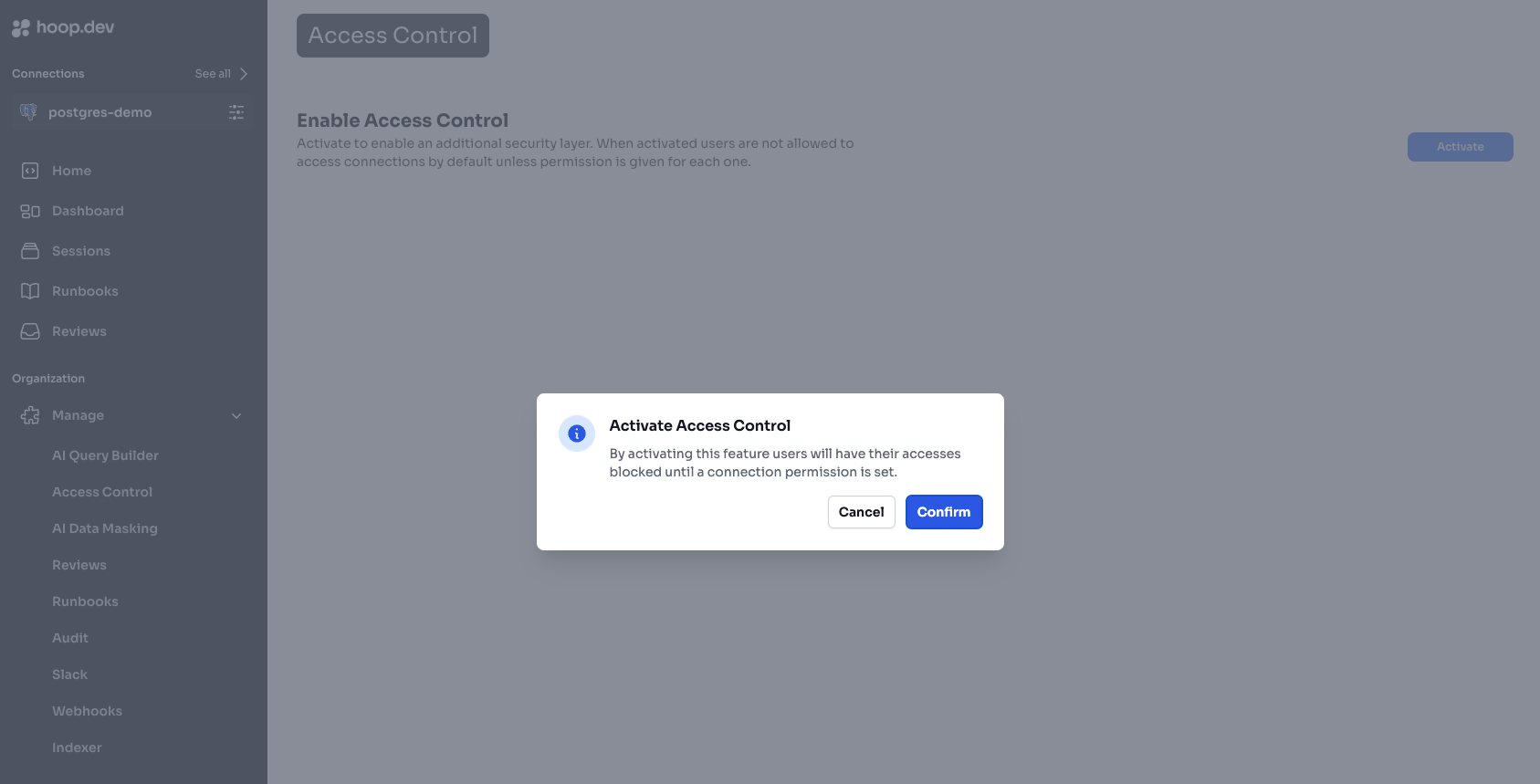
Step 2: Configure Connection Access
1
Select a Connection
Find the connection you want to configure and click on it
2
Toggle Access Control
Enable the Access Control toggle for this connection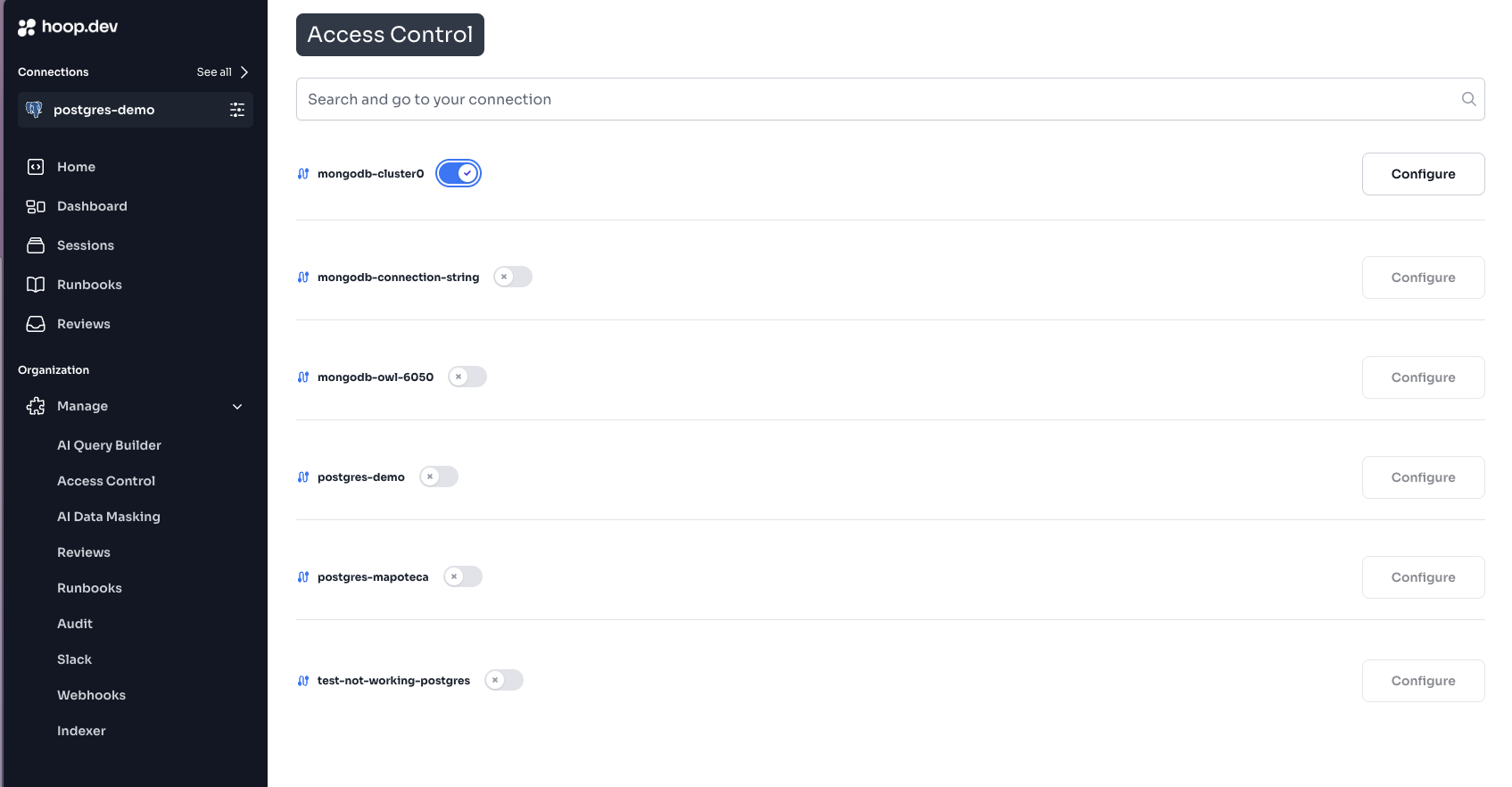
3
Select Allowed Groups
Choose which groups can access this connection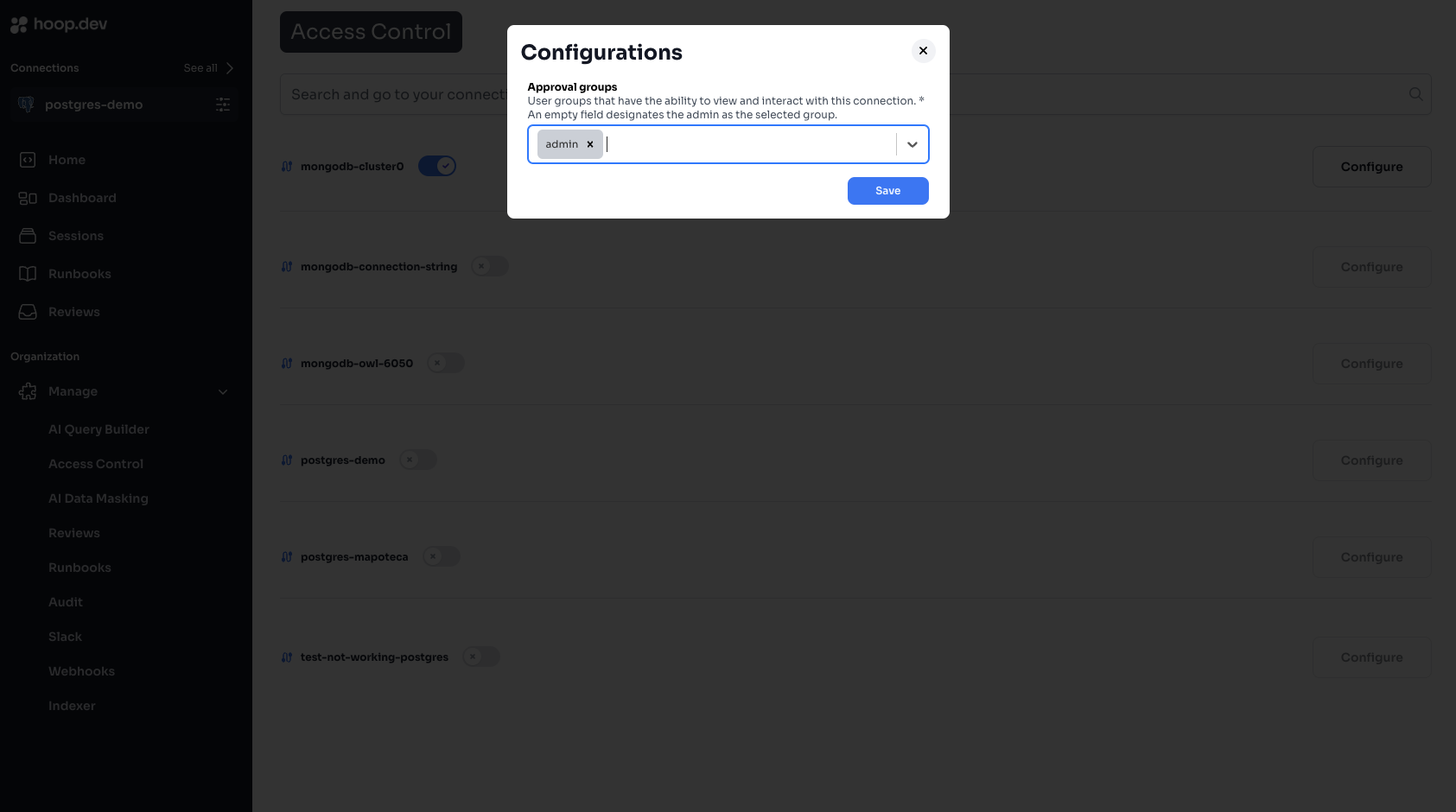
4
Save
Click Save to apply the changes
Step 3: Verify Access
- Log in as a user in one of the allowed groups
- Verify you can see and access the connection
- Log in as a user NOT in the allowed groups
- Verify the connection is not visible
Managing Groups
Creating Groups
Groups are typically managed in your identity provider (Okta, Auth0, Azure AD, etc.). When users log in, their group memberships are synced to Hoop. In Hoop, you can also create groups manually:- Go to Manage > Users & Groups
- Click Create Group
- Enter a group name (e.g.,
prod-access) - Add users to the group
Syncing Groups from Identity Provider
Configure your identity provider to include groups in the ID token:- Add a
groupsclaim to your OIDC configuration - Map your IdP groups to Hoop groups
- See Identity Provider Configuration for detailed setup
Built-in Roles
Admin users bypass Access Control and can access all connections. Use admin sparingly.
Common Patterns
Pattern 1: Environment-Based Access
Restrict production access to senior team members:Pattern 2: Team-Based Access
Each team only sees their own resources:Pattern 3: Role-Based Access
Different access levels for different roles:Pattern 4: Contractor Access
Temporary access for external contractors:- Create a
contractorsgroup - Add contractors to the group
- Only allow
contractorsgroup on specific, limited connections - Remove from group when contract ends
Combining with Other Features
Access Control works with other Hoop security features:Example: Layered Security
For a production database:- Access Control: Only
senior-engineerscan see the connection - Access Requests: Require JIT approval before connecting
- Guardrails: Block
DROP TABLEandDELETEwithout WHERE - Live Data Masking: Redact PII in query results
- Session Recording: Log all queries for audit
Troubleshooting
User Can’t See a Connection
Check:- Access Control is enabled on that connection
- User’s groups are in the allowed list
- User has logged out and back in (to sync groups)
- Identity provider is sending the
groupsclaim
- Go to Manage > Users
- Find the user and click to view details
- Check their group memberships
User Sees Connection But Can’t Connect
This is likely an Access Request or Guardrail issue, not Access Control. Check:- Is JIT or Action Access Request enabled?
- Are there Guardrails blocking the connection?
Groups Not Syncing from IdP
Check:groupsclaim is configured in your IdP- The OIDC scope includes
groups - Gateway environment variables are correct
- See Identity Provider Configuration
Best Practices
Least Privilege
Grant minimum access needed for each role
Use Groups, Not Users
Assign access to groups, not individual users
Regular Audits
Review access permissions quarterly
Document Policies
Write down who should have access to what
Access Review Checklist
Quarterly, review:- Are all group memberships still appropriate?
- Are there users who left but still have access?
- Are there connections that should have stricter access?
- Are contractors’ access limited to their engagement period?
Next Steps
Configuration Guide
Detailed configuration options
Identity Providers
Set up SSO and group sync
Access Requests
Add approval workflows
Guardrails
Block dangerous operations