> ## Documentation Index
> Fetch the complete documentation index at: https://hoopdev-docs-improve-idp-sso-pages.mintlify.site/llms.txt
> Use this file to discover all available pages before exploring further.

# Aws Rds IAM Auth

> It enables integration with AWS IAM Auth for RDS instances.

## AWS RDS IAM Authentication

You can authenticate to your DB cluster using AWS Identity and Access Management (IAM) database authentication. IAM database authentication works with PostgreSQL, MySQL.
With this authentication method, you don't need to use a password when you connect to a DB. Instead, you use an authentication token.

## Feature Overview

<p>
  | Database   | Native | One off | Description                                                                                  |
  | ---------- | ------ | ------- | -------------------------------------------------------------------------------------------- |
  | PostgreSQL | ✔️     | ✔️      | Supports IAM authentication for PostgreSQL RDS instances using Native connections and Webapp |
  | MySQL      | ✔️     | ✔️      | Supports IAM authentication for MySQL RDS instances using Webapp only                        |
</p>

## Configuration

<Steps>
  <Step title="Configure AWS RDS IAM Authentication in your AWS">
    * Follow the steps in the [AWS Documentation](https://docs.aws.amazon.com/AmazonRDS/latest/AuroraUserGuide/UsingWithRDS.IAMDBAuth.html) to enable IAM authentication for your RDS instance.
    * Make sure your AWS has the policy for [IAM database access](https://docs.aws.amazon.com/AmazonRDS/latest/AuroraUserGuide/UsingWithRDS.IAMDBAuth.IAMPolicy.html)
      For example, the policy below allows the user db-user to connect to the database cluster-ABCDEFGHIJKL01234 using IAM authentication.

    ```json theme={null}
    {
        "Version":"2012-10-17",
        "Statement": [
            {
                "Effect": "Allow",
                "Action": [
                    "rds-db:connect"
                ],
                "Resource": [
                    "arn:aws:rds-db:us-east-2:111122223333:dbuser:cluster-ABCDEFGHIJKL01234/db_user"
                ]
            }
        ]
    }
    ```

    <Info>
      If you want more users, you need to add a Resource for each user in the policy. `arn:aws:rds-db:us-east-2:111122223333:dbuser:cluster-ABCDEFGHIJKL01234/db_user2`
    </Info>

    * [Creating a database account using IAM authentication for PostgreSQL](https://docs.aws.amazon.com/AmazonRDS/latest/AuroraUserGuide/UsingWithRDS.IAMDBAuth.DBAccounts.html#UsingWithRDS.IAMDBAuth.DBAccounts.PostgreSQL).

    ```sql theme={null}
    CREATE USER db_user;
    GRANT rds_iam TO db_user;
    ```

    * [If you are using MySQL need create the user](https://docs.aws.amazon.com/AmazonRDS/latest/AuroraUserGuide/UsingWithRDS.IAMDBAuth.DBAccounts.html#UsingWithRDS.IAMDBAuth.DBAccounts.PostgreSQL).

    ```sql theme={null}
    CREATE USER 'db_user' IDENTIFIED WITH AWSAuthenticationPlugin AS 'RDS';
    ALTER USER 'db_user'@'%' REQUIRE SSL;
    ```

    <Info>
      You need to grant the role `rds_iam` to the user to be able to connect using IAM authentication.
      You also need to grant permissions if the db\_user needs to read and write to databases and schemas.
      For example, `GRANT SELECT ON ALL TABLES IN SCHEMA public TO db_user;` - this will be the permission you will have when connecting via Hoop.
    </Info>

    <Note>
      For AWS MySQL RDS you can follow the steps in the [AWS Documentation](https://docs.aws.amazon.com/AmazonRDS/latest/UserGuide/UsingWithRDS.IAMDBAuth.DBAccounts.html#UsingWithRDS.IAMDBAuth.DBAccounts.MySQL).
    </Note>
  </Step>

  <Step title="Configure the Role on your agent">
    <p>
      Make sure your agent has the AWS credentials configured or can assume an AWS role that can use the policy created previously
      to be able to generate the auth token.
    </p>

    <p>
      If you deploy your agent on Kubernetes, you need to assume the role. For example:
      The code example may need to be adjusted to fit your specific setup.

      ```yaml theme={null}
      apiVersion: v1
      kind: ServiceAccount
      metadata:
        name: hoop-rds-sa
        namespace: default
        annotations:
        eks.amazonaws.com/role-arn: arn:aws:iam::<ACCOUNT-ID>:role/HoopRdsIamRole
      ```

      `HoopRdsIamRole` is the role that has the policy to create tokens for connecting to RDS using IAM authentication.
    </p>

    <p>
      If the agent runs in Kubernetes on EKS, then the best practice is to use IRSA (IAM Roles for Service Accounts).
      The trust policy for the EKS cluster OIDC provider is shown below.
      The code example may need to be adjusted to fit your specific setup.

      ```json theme={null}
      {
        "Version": "2012-10-17",
        "Statement": [
          {
            "Effect": "Allow",
            "Principal": {
              "Federated": "arn:aws:iam::<ACCOUNT-ID>:oidc-provider/oidc.eks.<region>.amazonaws.com/id/<OIDC-ID>"
            },
            "Action": "sts:AssumeRoleWithWebIdentity",
            "Condition": {
              "StringEquals": {
                "oidc.eks.<region>.amazonaws.com/id/<OIDC-ID>:sub": "system:serviceaccount:<NAMESPACE>:<SERVICEACCOUNT-NAME>"
              }
            }
          }
        ]
      }
      ```
    </p>

    <p>
      If the agent runs on an EC2 instance, you can attach the role to the instance profile.
    </p>

    <p>
      Alternatively, you can add the AWS credentials as environment variables in your agent:

      ```bash theme={null}
      export AWS_ACCESS_KEY_ID=your_access_key_id
      export AWS_SECRET_ACCESS_KEY=your_secret_access_key
      export AWS_DEFAULT_REGION=your_aws_region
      ```
    </p>
  </Step>

  <Step title="Configure the AWS Auth on Hoop">
    <p>
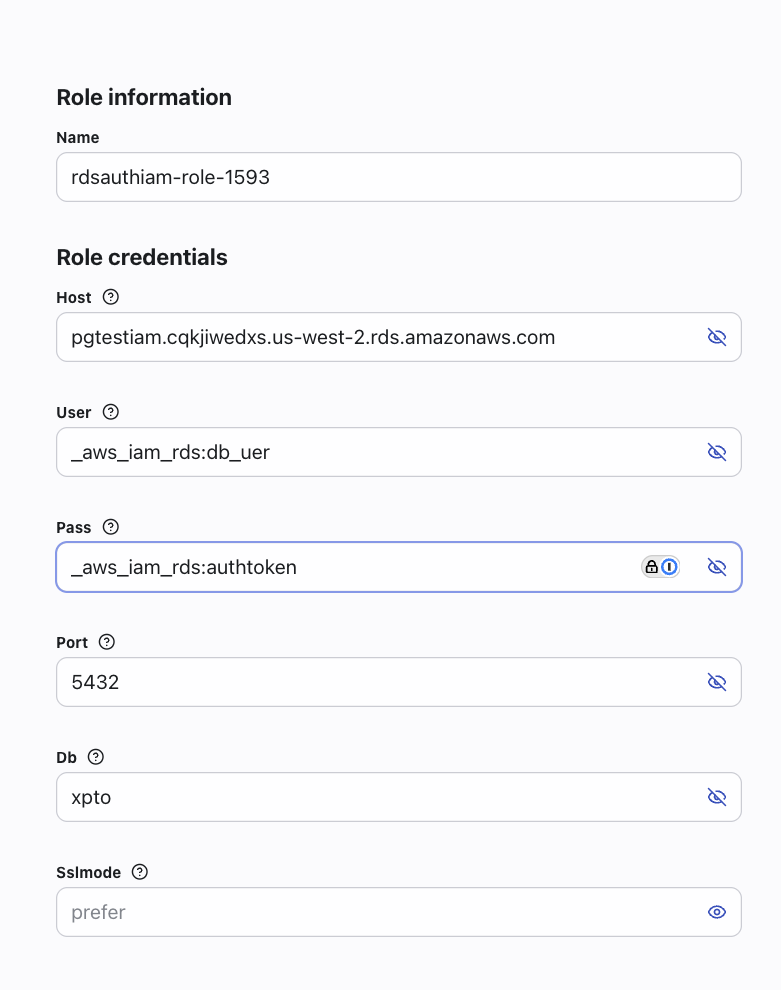
      When creating a new role, the User and Pass information must follow the following format:

      * User: `_aws_iam_rds:db_user`
      * Pass: `_aws_iam_rds:authtoken`

      Role information can be mapped using the following syntax:
      <Frame>
        <img src="https://mintcdn.com/hoopdev-docs-improve-idp-sso-pages/mOi9paMdj4zBZvQ5/images/learn/rdsiamauth.png?fit=max&auto=format&n=mOi9paMdj4zBZvQ5&q=85&s=3f25ce63bf33cc5f53fba654ddbd0bec" width="781" height="990" data-path="images/learn/rdsiamauth.png" />
      </Frame>

      <Info>
        When connecting to the database, Hoop will generate the auth token for you.
      </Info>
    </p>
  </Step>

  <Step title="Testing">
    <p>
      * You can run the query on webapp.
      * You can create a native connection on the webapp.
    </p>
  </Step>
</Steps>

<Note>
  Make sure your agent has the AWS credentials configured or can assume an AWS role that can use the policy created previously
  to be able to generate the auth token.
</Note>
