> ## Documentation Index
> Fetch the complete documentation index at: https://hoopdev-docs-improve-idp-sso-pages.mintlify.site/llms.txt
> Use this file to discover all available pages before exploring further.
# Google
## Requirements
* An [account in GCP](https://console.cloud.google.com)
* `API_URL` is the public DNS name of the hoop gateway instance
Contact the administrator of the hoop gateway instance to retrieve the `API_URL` address.
## Identity Provider Configuration
Login with your account at [https://console.cloud.google.com/apis/credentials](https://console.cloud.google.com/apis/credentials)
* Go to `Credentials` > `Create Credentials` button > `OAuth Client ID`
* In Application type, select `Web Application`
* Give it a name (i.e. “Hoop”)
* Click Authorized redirect URIs and add the URL: `{API_URL}/api/callback`
* Click Create button
* Take note on the `ClientID` and `Client Secret`
When you created the app, you got those. But they are also available in the JSON file that was downloaded by the creation time. The download is also available at:
* Credentials > OAuth 2.0 Client IDs > Actions > Download
The Issuer URI is `https://accounts.google.com`
## Configure Hoop Gateway
Go to **Integrations** > **Authentication** and fill in:
* **Auth Method**: OIDC
* **Issuer URL**: `https://accounts.google.com`
* **Client ID**: the Client ID from above
* **Client Secret**: the Client Secret from above
```sh theme={null}
curl -X PUT {API_URL}/api/serverconfig/auth \
-H "Api-Key: {API_KEY}" \
-H "Content-Type: application/json" \
-d '{
"auth_method": "oidc",
"provider_name": "google",
"oidc_config": {
"issuer_url": "https://accounts.google.com",
"client_id": "{CLIENT_ID}",
"client_secret": "{CLIENT_SECRET}",
"groups_claim": "groups"
},
"webapp_users_management_status": "active"
}'
```
## Configuring Groups
Groups are synchronized by performing a request to the [Cloud Identity API](https://cloud.google.com/identity/docs/reference/rest/v1/groups.memberships/searchDirectGroups) as a best effort operation.
This feature is available in version 1.35.2 and later.
Add the Cloud Identity scope to the gateway configuration. In **Integrations** > **Authentication**, add the following to the **Scopes** field:
* `https://www.googleapis.com/auth/cloud-identity.groups.readonly`
Or via API, include it in the `scopes` array of the `oidc_config`.
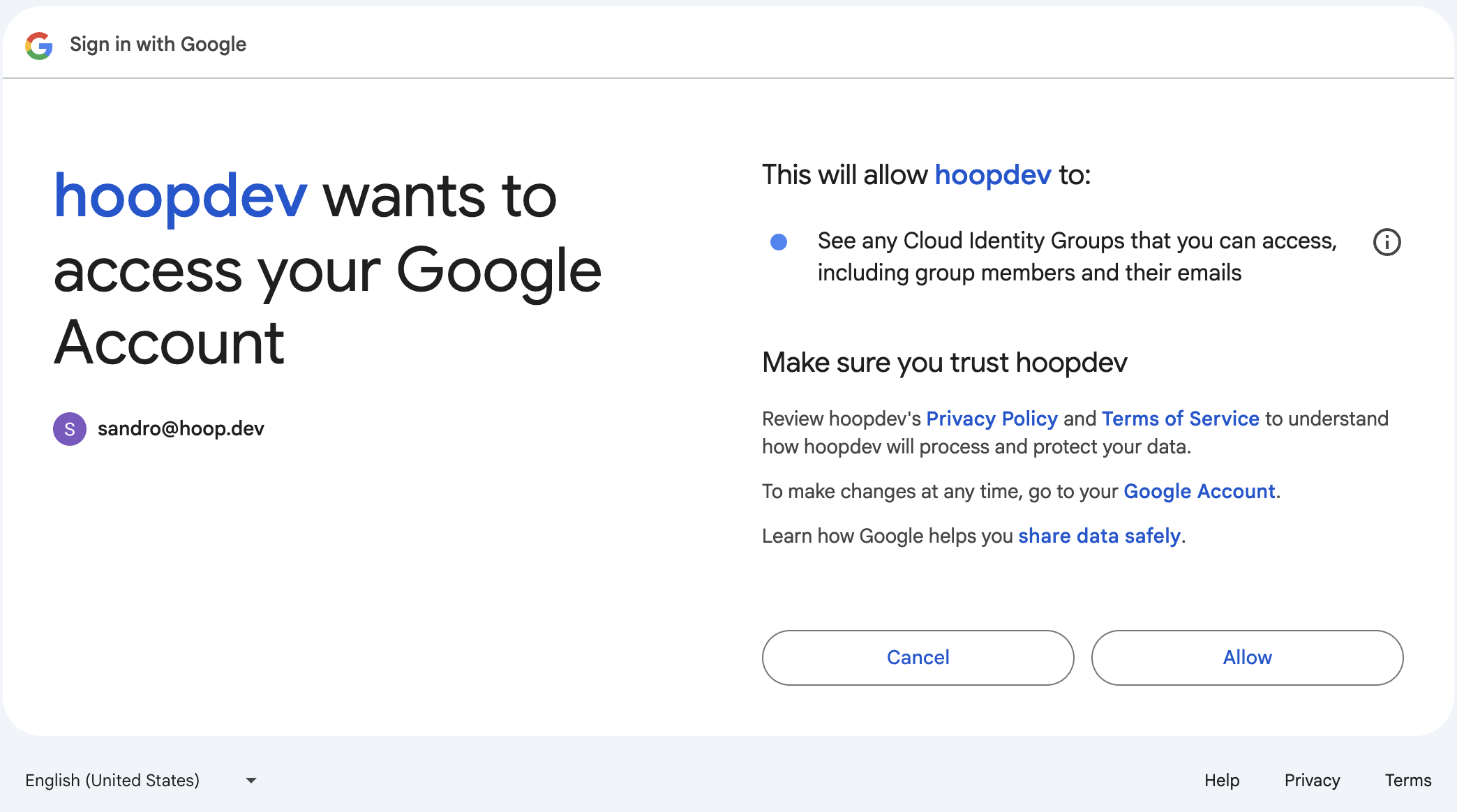
Users will need to provide consent for the following access permissions when first logging in to enable proper group synchronization.
 * Visit the [Cloud Identity API Page](https://console.cloud.google.com/apis/api/cloudidentity.googleapis.com/overview)
* Clik in the button `ENABLE`
When configuring group synchronization, admin access may be revoked upon your next sign-in. To maintain administrative privileges, update the **Admin Role Name** in **Integrations** > **Authentication** to match a Google Workspace group you belong to before signing in again.
* Visit the [Cloud Identity API Page](https://console.cloud.google.com/apis/api/cloudidentity.googleapis.com/overview)
* Clik in the button `ENABLE`
When configuring group synchronization, admin access may be revoked upon your next sign-in. To maintain administrative privileges, update the **Admin Role Name** in **Integrations** > **Authentication** to match a Google Workspace group you belong to before signing in again.