> ## Documentation Index
> Fetch the complete documentation index at: https://hoopdev-docs-improve-idp-sso-pages.mintlify.site/llms.txt
> Use this file to discover all available pages before exploring further.
# Access Control Configuration
> Configure group-based access policies for your connections
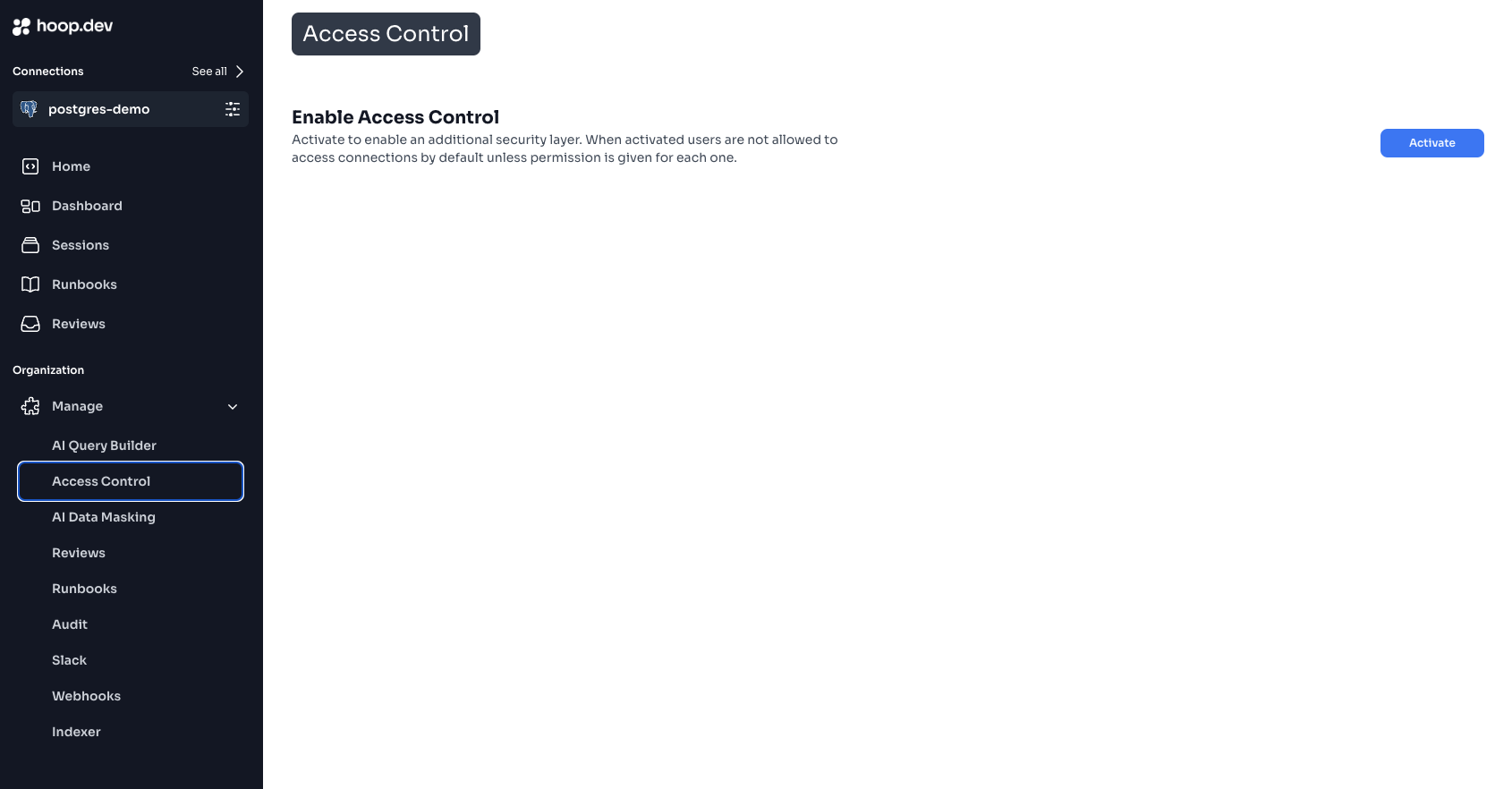 Access Control lets you restrict which users can see and access specific connections based on their group memberships. This page covers detailed configuration options.
For an introduction to Access Control concepts, see [Access Control Overview](/learn/features/access-control).
***
## Enabling Access Control
Enabling Access Control will immediately hide connections from users who don't have explicit access. Plan your group assignments before enabling.
### Step 1: Activate Access Control
Go to **Manage > Access Control** in the sidebar
Read the activation warning carefully. Understand that:
* Users without group assignments will lose access
* You'll need to configure each connection individually
* Changes take effect immediately
Access Control lets you restrict which users can see and access specific connections based on their group memberships. This page covers detailed configuration options.
For an introduction to Access Control concepts, see [Access Control Overview](/learn/features/access-control).
***
## Enabling Access Control
Enabling Access Control will immediately hide connections from users who don't have explicit access. Plan your group assignments before enabling.
### Step 1: Activate Access Control
Go to **Manage > Access Control** in the sidebar
Read the activation warning carefully. Understand that:
* Users without group assignments will lose access
* You'll need to configure each connection individually
* Changes take effect immediately
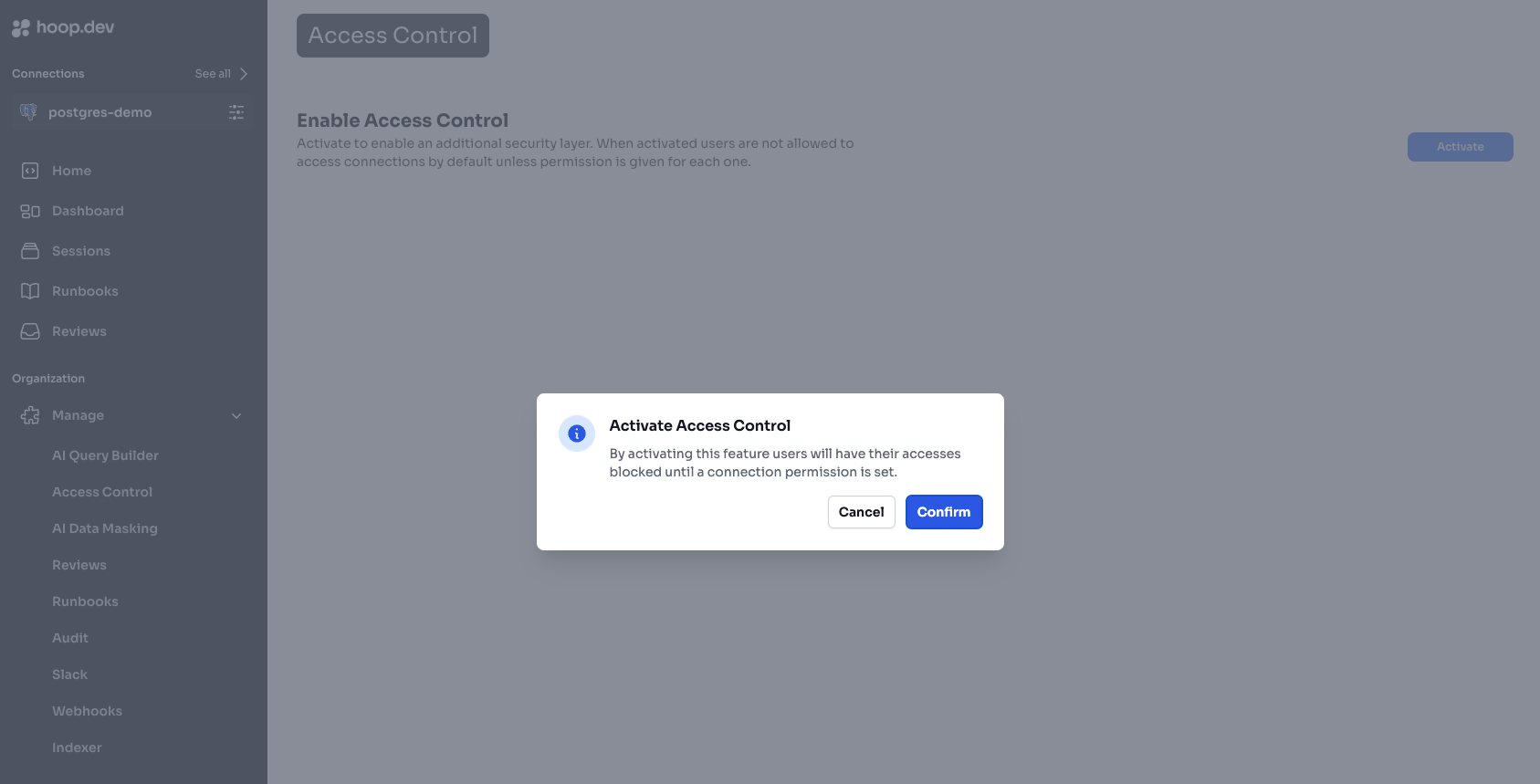 Click **Activate** to enable Access Control for your organization
### Step 2: Configure Connections
After activation, configure access for each connection:
Find the connection in the list and click to configure
Click **Activate** to enable Access Control for your organization
### Step 2: Configure Connections
After activation, configure access for each connection:
Find the connection in the list and click to configure
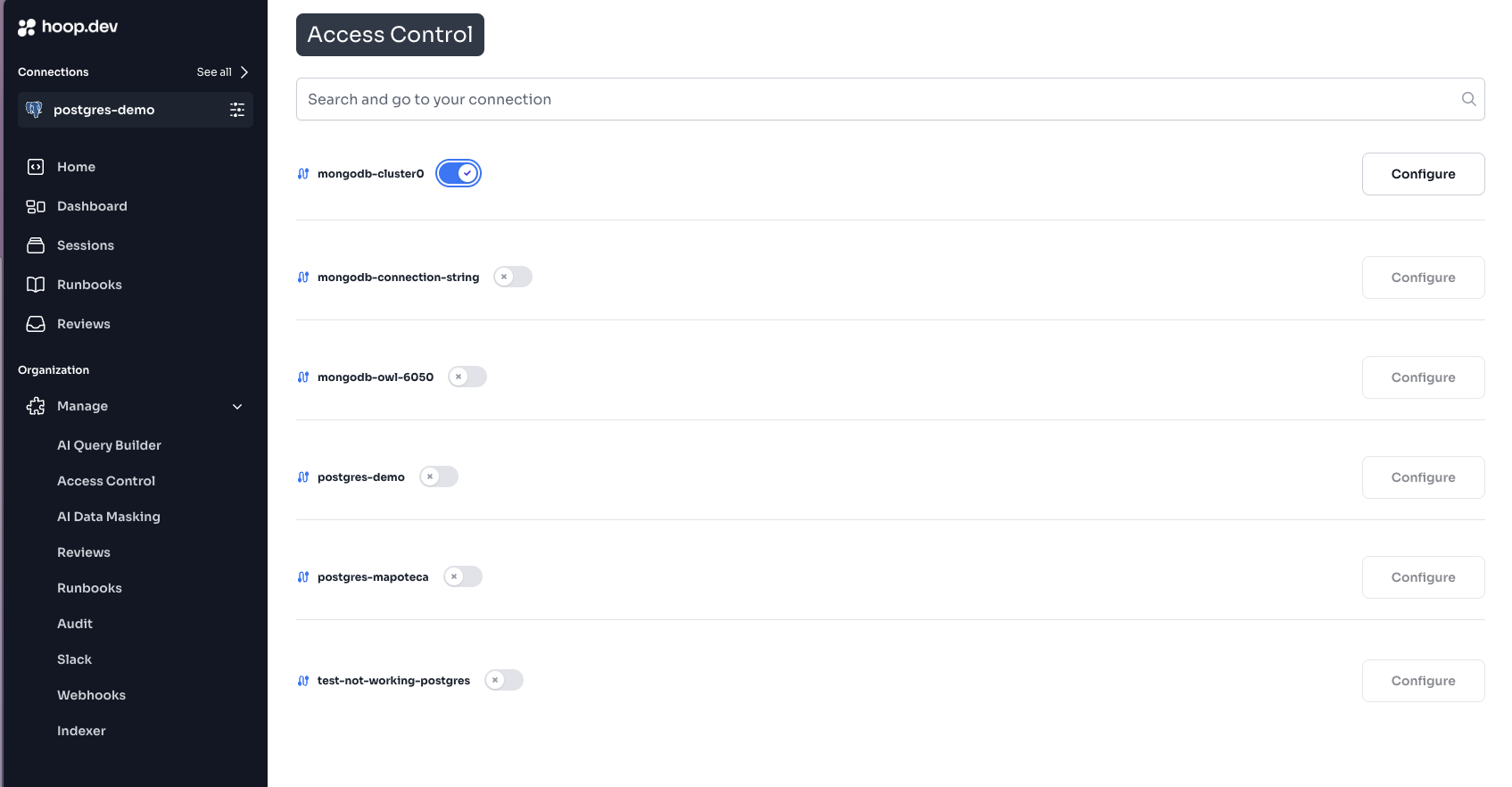 Toggle the Access Control switch for this connection
Select which groups can access this connection
Toggle the Access Control switch for this connection
Select which groups can access this connection
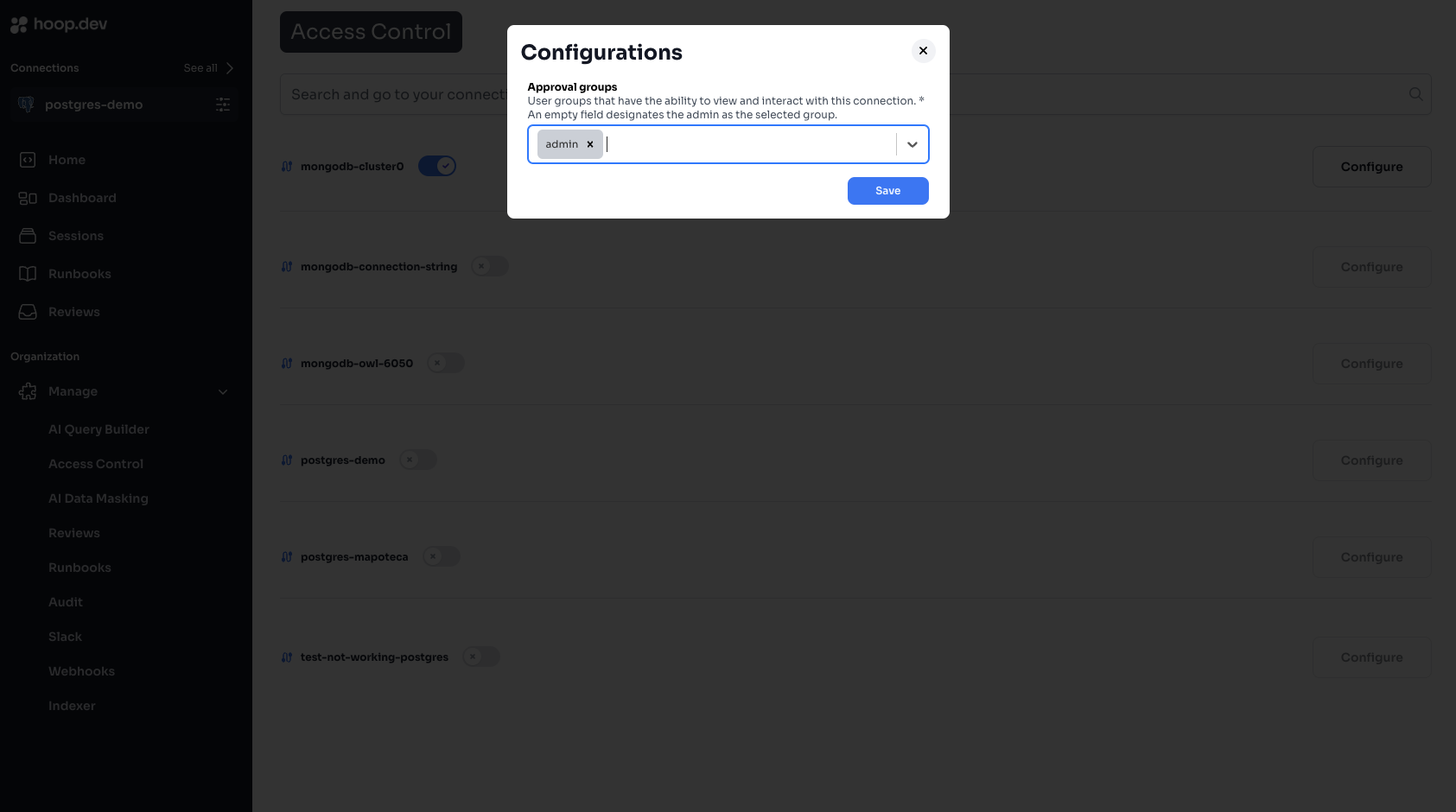 Click **Save** to apply the configuration
***
## Group Management
### Creating Groups
Groups can be created in two ways:
**Option A: Manual Creation (in Hoop)**
1. Go to **Manage > Users & Groups**
2. Click the **Groups** tab
3. Click **Create Group**
4. Enter a group name (e.g., `prod-access`, `analytics-team`)
5. Add users to the group
**Option B: Sync from Identity Provider**
Groups can be automatically synced when users log in:
1. Configure your IdP to include `groups` claim in the ID token
2. Users' groups are synced on each login
3. See [Identity Provider Configuration](/setup/configuration/idp/get-started)
### Built-in Groups
| Group | Description | Permissions |
| --------- | -------------- | ------------------------------------------- |
| `admin` | Administrators | Full access to all connections and settings |
| `auditor` | Audit access | Read-only access to sessions and logs |
Admin users bypass Access Control and can access all connections regardless of group configuration.
### Group Naming Conventions
Recommended naming patterns:
| Pattern | Example | Use Case |
| ----------- | ------------------------------------- | ------------------------ |
| Environment | `prod-access`, `staging-access` | Environment-based access |
| Team | `engineering`, `analytics`, `support` | Team-based access |
| Role | `dba`, `developer`, `viewer` | Role-based access |
| Combined | `prod-dba`, `staging-dev` | Specific combinations |
***
## Permission Types
### Connection Visibility
When Access Control is enabled on a connection:
| User's Groups | Connection Visibility |
| --------------------- | ---------------------------------------- |
| In allowed groups | Connection is visible and accessible |
| Not in allowed groups | Connection is hidden completely |
| Admin group | Always visible (bypasses Access Control) |
### Combining with Access Requests
Access Control and Access Requests work together:
| Access Control | Access Requests | Result |
| -------------- | --------------- | ------------------------------ |
| Allowed | Not enabled | Direct access |
| Allowed | JIT enabled | Must request time-based access |
| Allowed | Action enabled | Each command needs approval |
| Not allowed | Any | Connection not visible |
***
## Configuration Patterns
### Pattern 1: Environment-Based
Separate access by environment:
```
Connection: prod-database
Allowed Groups: senior-engineers, dba
Connection: staging-database
Allowed Groups: engineering, qa
Connection: dev-database
Allowed Groups: engineering, contractors
```
### Pattern 2: Team-Based
Each team accesses their own resources:
```
Connection: payments-db
Allowed Groups: payments-team
Connection: inventory-db
Allowed Groups: inventory-team
Connection: analytics-warehouse
Allowed Groups: analytics-team, data-science
```
### Pattern 3: Read/Write Separation
Create separate connections with different access levels:
```
Connection: prod-db-readonly
Allowed Groups: engineering, analytics, support
(Configured with read-only database user)
Connection: prod-db-readwrite
Allowed Groups: dba, senior-engineers
(Configured with read-write database user)
```
### Pattern 4: Contractor Access
Limited access for external contractors:
```
Connection: contractor-db
Allowed Groups: contractors
(Limited database, Live Data Masking enabled)
```
***
## Identity Provider Integration
### Syncing Groups from IdP
To automatically sync groups from your identity provider:
1. **Configure IdP to include groups claim:**
In your IdP (Okta, Auth0, Azure AD, etc.), configure the OIDC application to include a `groups` claim in the ID token.
2. **Set environment variables on gateway:**
```bash theme={null}
IDP_GROUPS_CLAIM=groups
```
Or for custom claim names:
```bash theme={null}
IDP_GROUPS_CLAIM=https://mycompany.com/groups
```
3. **Groups sync on login:**
When users log in, their groups are automatically synced from the IdP.
### Provider-Specific Guides
Configure Okta group sync
Configure Auth0 group sync
Configure Azure AD group sync
Configure Google Workspace groups
***
## Auditing Access
### Viewing User Permissions
To see what a user can access:
1. Go to **Manage > Users**
2. Click on a user
3. View their group memberships
4. Cross-reference with connection configurations
### Access Logs
All access attempts are logged:
1. Go to **Sessions**
2. Filter by user or connection
3. See successful connections and denied attempts
### Exporting Access Report
Generate a report of who can access what:
```bash theme={null}
hoop admin get connections -o json | \
jq '.[] | {name, allowed_groups}'
```
***
## Troubleshooting
### User Can't See a Connection
**Checklist:**
1. **Is Access Control enabled on the connection?**
* Go to connection settings
* Check if Access Control toggle is on
2. **Is the user in an allowed group?**
* Go to **Manage > Users**
* Check user's group memberships
* Verify groups match connection's allowed groups
3. **Has the user logged out and back in?**
* Groups sync on login
* Have user log out and log in again
4. **Is the IdP sending groups correctly?**
* Check IdP configuration
* Verify `groups` claim in ID token
**Debug steps:**
```bash theme={null}
# Check user's groups
hoop admin get user
# Check connection's allowed groups
hoop admin get connection
```
### User Sees Connection But Can't Connect
This is likely NOT an Access Control issue. Check:
1. **Access Requests:** Is JIT or Action approval required?
2. **Guardrails:** Are there blocking rules?
3. **Connection status:** Is the agent online?
### Groups Not Syncing from IdP
**Check:**
1. IdP is configured to include `groups` claim
2. `IDP_GROUPS_CLAIM` environment variable is set correctly
3. User has groups assigned in the IdP
4. Gateway was restarted after configuration
**Debug:**
* Decode the ID token to verify `groups` claim is present
* Check gateway logs for group sync errors
***
## Best Practices
Begin with minimal access and expand as needed
Always assign access to groups, never individuals
Maintain a document of who should access what
Audit access quarterly
### Before Enabling Access Control
1. [ ] Inventory all connections
2. [ ] Identify who needs access to each
3. [ ] Create groups in IdP or Hoop
4. [ ] Assign users to groups
5. [ ] Document the access policy
6. [ ] Test with a non-production connection first
### Quarterly Access Review
1. [ ] Export current access configuration
2. [ ] Review with team leads
3. [ ] Remove departed employees
4. [ ] Verify contractor access is time-limited
5. [ ] Update documentation
***
## Related
Learn Access Control concepts
Configure SSO and group sync
Add approval workflows
User and group management in Web App
Click **Save** to apply the configuration
***
## Group Management
### Creating Groups
Groups can be created in two ways:
**Option A: Manual Creation (in Hoop)**
1. Go to **Manage > Users & Groups**
2. Click the **Groups** tab
3. Click **Create Group**
4. Enter a group name (e.g., `prod-access`, `analytics-team`)
5. Add users to the group
**Option B: Sync from Identity Provider**
Groups can be automatically synced when users log in:
1. Configure your IdP to include `groups` claim in the ID token
2. Users' groups are synced on each login
3. See [Identity Provider Configuration](/setup/configuration/idp/get-started)
### Built-in Groups
| Group | Description | Permissions |
| --------- | -------------- | ------------------------------------------- |
| `admin` | Administrators | Full access to all connections and settings |
| `auditor` | Audit access | Read-only access to sessions and logs |
Admin users bypass Access Control and can access all connections regardless of group configuration.
### Group Naming Conventions
Recommended naming patterns:
| Pattern | Example | Use Case |
| ----------- | ------------------------------------- | ------------------------ |
| Environment | `prod-access`, `staging-access` | Environment-based access |
| Team | `engineering`, `analytics`, `support` | Team-based access |
| Role | `dba`, `developer`, `viewer` | Role-based access |
| Combined | `prod-dba`, `staging-dev` | Specific combinations |
***
## Permission Types
### Connection Visibility
When Access Control is enabled on a connection:
| User's Groups | Connection Visibility |
| --------------------- | ---------------------------------------- |
| In allowed groups | Connection is visible and accessible |
| Not in allowed groups | Connection is hidden completely |
| Admin group | Always visible (bypasses Access Control) |
### Combining with Access Requests
Access Control and Access Requests work together:
| Access Control | Access Requests | Result |
| -------------- | --------------- | ------------------------------ |
| Allowed | Not enabled | Direct access |
| Allowed | JIT enabled | Must request time-based access |
| Allowed | Action enabled | Each command needs approval |
| Not allowed | Any | Connection not visible |
***
## Configuration Patterns
### Pattern 1: Environment-Based
Separate access by environment:
```
Connection: prod-database
Allowed Groups: senior-engineers, dba
Connection: staging-database
Allowed Groups: engineering, qa
Connection: dev-database
Allowed Groups: engineering, contractors
```
### Pattern 2: Team-Based
Each team accesses their own resources:
```
Connection: payments-db
Allowed Groups: payments-team
Connection: inventory-db
Allowed Groups: inventory-team
Connection: analytics-warehouse
Allowed Groups: analytics-team, data-science
```
### Pattern 3: Read/Write Separation
Create separate connections with different access levels:
```
Connection: prod-db-readonly
Allowed Groups: engineering, analytics, support
(Configured with read-only database user)
Connection: prod-db-readwrite
Allowed Groups: dba, senior-engineers
(Configured with read-write database user)
```
### Pattern 4: Contractor Access
Limited access for external contractors:
```
Connection: contractor-db
Allowed Groups: contractors
(Limited database, Live Data Masking enabled)
```
***
## Identity Provider Integration
### Syncing Groups from IdP
To automatically sync groups from your identity provider:
1. **Configure IdP to include groups claim:**
In your IdP (Okta, Auth0, Azure AD, etc.), configure the OIDC application to include a `groups` claim in the ID token.
2. **Set environment variables on gateway:**
```bash theme={null}
IDP_GROUPS_CLAIM=groups
```
Or for custom claim names:
```bash theme={null}
IDP_GROUPS_CLAIM=https://mycompany.com/groups
```
3. **Groups sync on login:**
When users log in, their groups are automatically synced from the IdP.
### Provider-Specific Guides
Configure Okta group sync
Configure Auth0 group sync
Configure Azure AD group sync
Configure Google Workspace groups
***
## Auditing Access
### Viewing User Permissions
To see what a user can access:
1. Go to **Manage > Users**
2. Click on a user
3. View their group memberships
4. Cross-reference with connection configurations
### Access Logs
All access attempts are logged:
1. Go to **Sessions**
2. Filter by user or connection
3. See successful connections and denied attempts
### Exporting Access Report
Generate a report of who can access what:
```bash theme={null}
hoop admin get connections -o json | \
jq '.[] | {name, allowed_groups}'
```
***
## Troubleshooting
### User Can't See a Connection
**Checklist:**
1. **Is Access Control enabled on the connection?**
* Go to connection settings
* Check if Access Control toggle is on
2. **Is the user in an allowed group?**
* Go to **Manage > Users**
* Check user's group memberships
* Verify groups match connection's allowed groups
3. **Has the user logged out and back in?**
* Groups sync on login
* Have user log out and log in again
4. **Is the IdP sending groups correctly?**
* Check IdP configuration
* Verify `groups` claim in ID token
**Debug steps:**
```bash theme={null}
# Check user's groups
hoop admin get user
# Check connection's allowed groups
hoop admin get connection
```
### User Sees Connection But Can't Connect
This is likely NOT an Access Control issue. Check:
1. **Access Requests:** Is JIT or Action approval required?
2. **Guardrails:** Are there blocking rules?
3. **Connection status:** Is the agent online?
### Groups Not Syncing from IdP
**Check:**
1. IdP is configured to include `groups` claim
2. `IDP_GROUPS_CLAIM` environment variable is set correctly
3. User has groups assigned in the IdP
4. Gateway was restarted after configuration
**Debug:**
* Decode the ID token to verify `groups` claim is present
* Check gateway logs for group sync errors
***
## Best Practices
Begin with minimal access and expand as needed
Always assign access to groups, never individuals
Maintain a document of who should access what
Audit access quarterly
### Before Enabling Access Control
1. [ ] Inventory all connections
2. [ ] Identify who needs access to each
3. [ ] Create groups in IdP or Hoop
4. [ ] Assign users to groups
5. [ ] Document the access policy
6. [ ] Test with a non-production connection first
### Quarterly Access Review
1. [ ] Export current access configuration
2. [ ] Review with team leads
3. [ ] Remove departed employees
4. [ ] Verify contractor access is time-limited
5. [ ] Update documentation
***
## Related
Learn Access Control concepts
Configure SSO and group sync
Add approval workflows
User and group management in Web App