> ## Documentation Index
> Fetch the complete documentation index at: https://hoopdev-docs-improve-idp-sso-pages.mintlify.site/llms.txt
> Use this file to discover all available pages before exploring further.
# Just-in-Time Access Requests
> Grant temporary, time-limited access to resources with automatic expiration and approval workflows
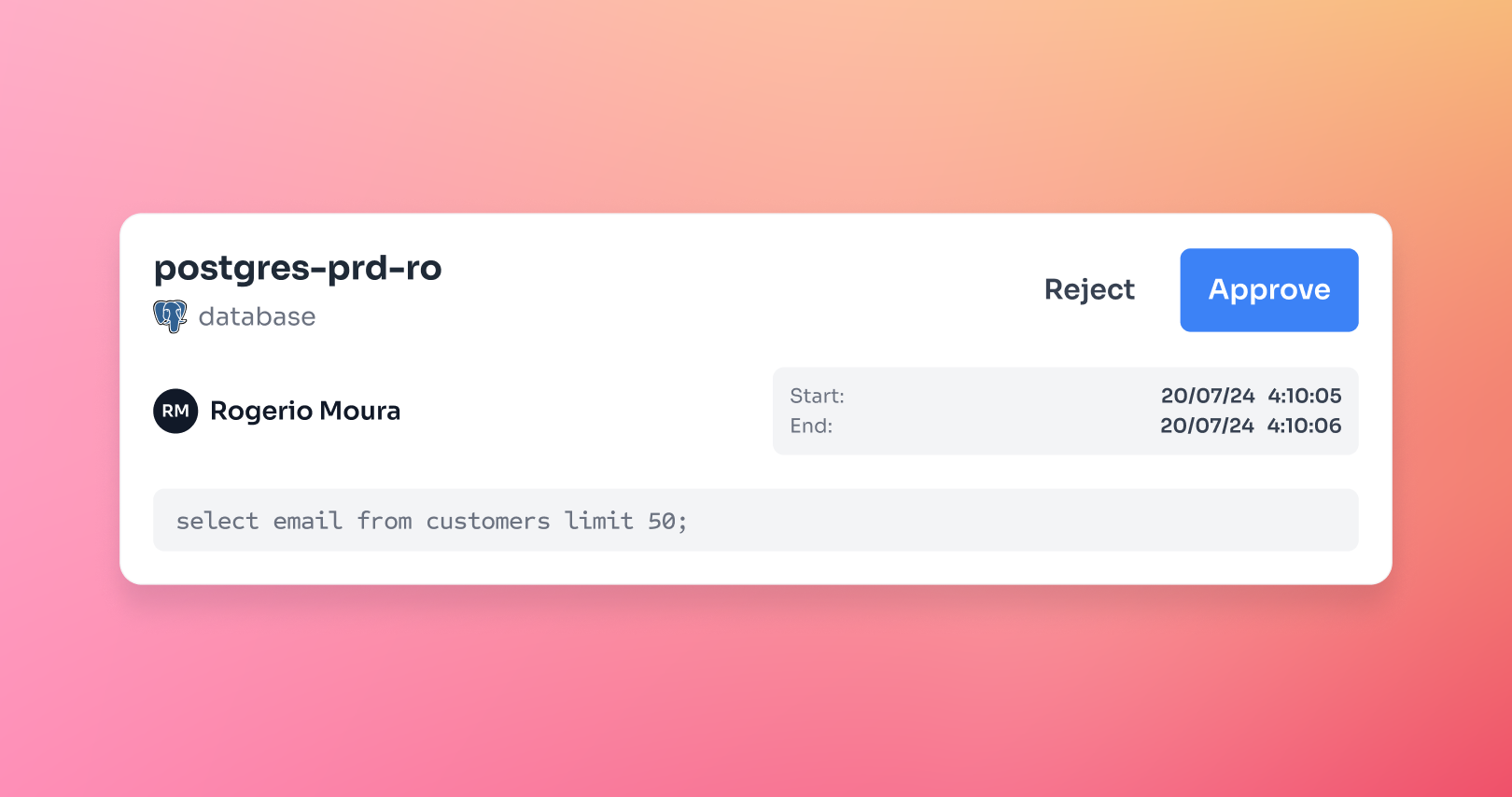
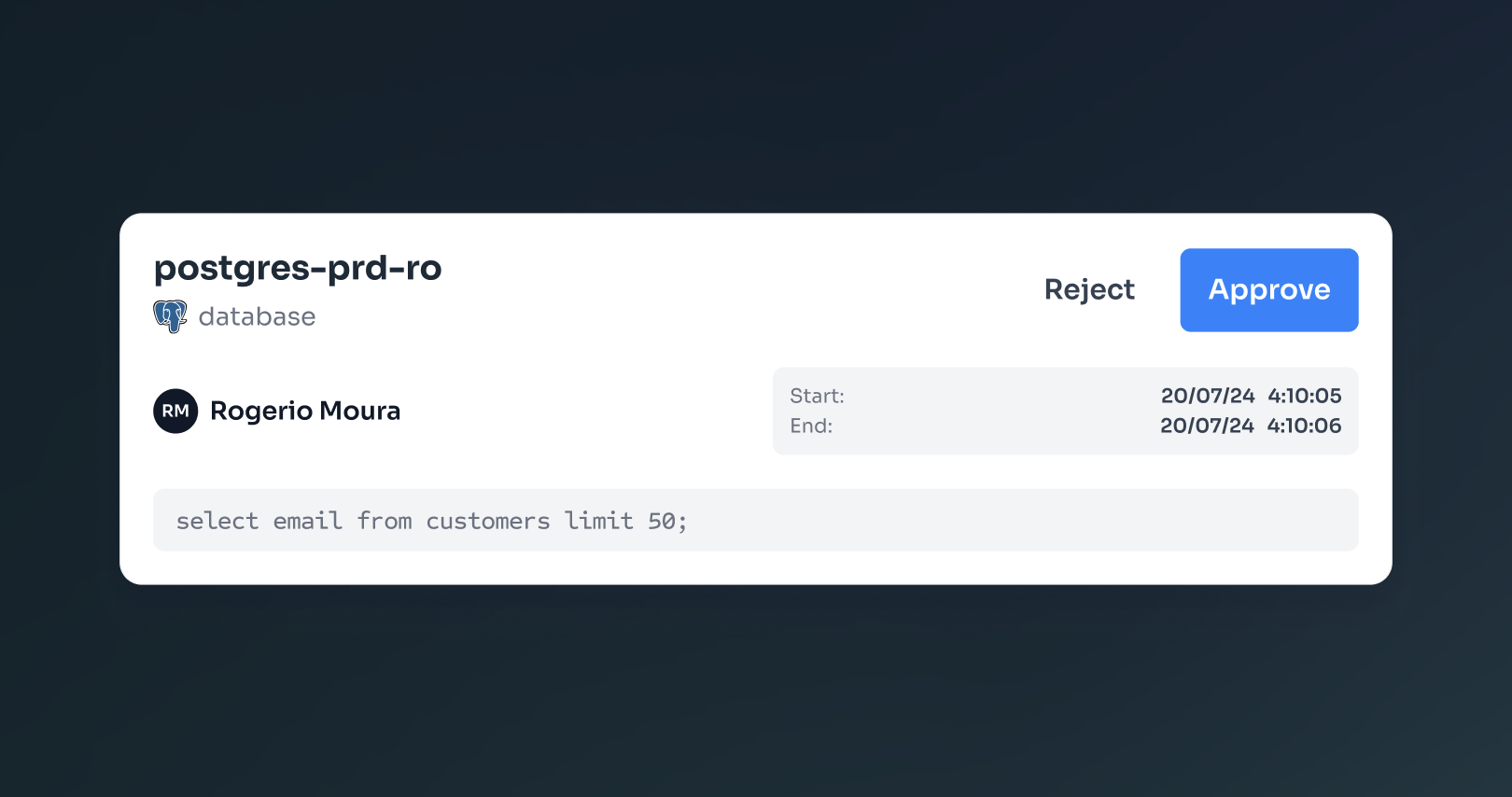 ## What You'll Accomplish
Just-in-Time (JIT) Access Requests let you grant temporary access to production resources with automatic expiration. Instead of giving permanent access, you can:
* Grant a developer 2 hours of database access for debugging
* Allow on-call engineers 8 hours of access during their shift
* Enable break-glass access for emergencies with full audit trail
* Reduce standing privileges by requiring approval for every access request
**The key difference from Action Access Requests:** JIT grants time-based access to a connection. Once approved, the user can run any command within that time window. Action Access Requests require approval for each individual command.
***
## How JIT Access Requests Work
User runs `hoop connect --duration 2h` to request time-limited access
An access request is created with status **PENDING** and approvers are notified via Slack/Teams
Approver approves or rejects the request
If approved, user gets access for the requested duration. Access automatically expires when time runs out.
### Request Statuses
| Status | Description |
| ------------ | ------------------------------------------- |
| **PENDING** | Waiting for approval from designated groups |
| **APPROVED** | Access granted, user can connect |
| **REJECTED** | Access denied by an approver |
| **REVOKED** | Access withdrawn after initial approval |
| **EXECUTED** | Access period completed (expired) |
***
## Quick Start
## Prerequisites
To get the most out of this guide, you will need to:
* Either [create an account in our managed instance](https://use.hoop.dev) or [deploy your own hoop.dev instance](/setup/deployment/overview)
* You must be your account administrator to perform the following actions
- A connection configured with an agent
- At least one user group for approvers (e.g., `admin`, `dba-team`)
- (Optional) [Slack integration](/integrations/slack) for notifications
### Step 1: Enable JIT Access Requests on a Connection
Go to **Manage > Access Requests** in the Web App
Find the connection you want to protect (e.g., `prod-postgres`) and click **Configure**
## What You'll Accomplish
Just-in-Time (JIT) Access Requests let you grant temporary access to production resources with automatic expiration. Instead of giving permanent access, you can:
* Grant a developer 2 hours of database access for debugging
* Allow on-call engineers 8 hours of access during their shift
* Enable break-glass access for emergencies with full audit trail
* Reduce standing privileges by requiring approval for every access request
**The key difference from Action Access Requests:** JIT grants time-based access to a connection. Once approved, the user can run any command within that time window. Action Access Requests require approval for each individual command.
***
## How JIT Access Requests Work
User runs `hoop connect --duration 2h` to request time-limited access
An access request is created with status **PENDING** and approvers are notified via Slack/Teams
Approver approves or rejects the request
If approved, user gets access for the requested duration. Access automatically expires when time runs out.
### Request Statuses
| Status | Description |
| ------------ | ------------------------------------------- |
| **PENDING** | Waiting for approval from designated groups |
| **APPROVED** | Access granted, user can connect |
| **REJECTED** | Access denied by an approver |
| **REVOKED** | Access withdrawn after initial approval |
| **EXECUTED** | Access period completed (expired) |
***
## Quick Start
## Prerequisites
To get the most out of this guide, you will need to:
* Either [create an account in our managed instance](https://use.hoop.dev) or [deploy your own hoop.dev instance](/setup/deployment/overview)
* You must be your account administrator to perform the following actions
- A connection configured with an agent
- At least one user group for approvers (e.g., `admin`, `dba-team`)
- (Optional) [Slack integration](/integrations/slack) for notifications
### Step 1: Enable JIT Access Requests on a Connection
Go to **Manage > Access Requests** in the Web App
Find the connection you want to protect (e.g., `prod-postgres`) and click **Configure**
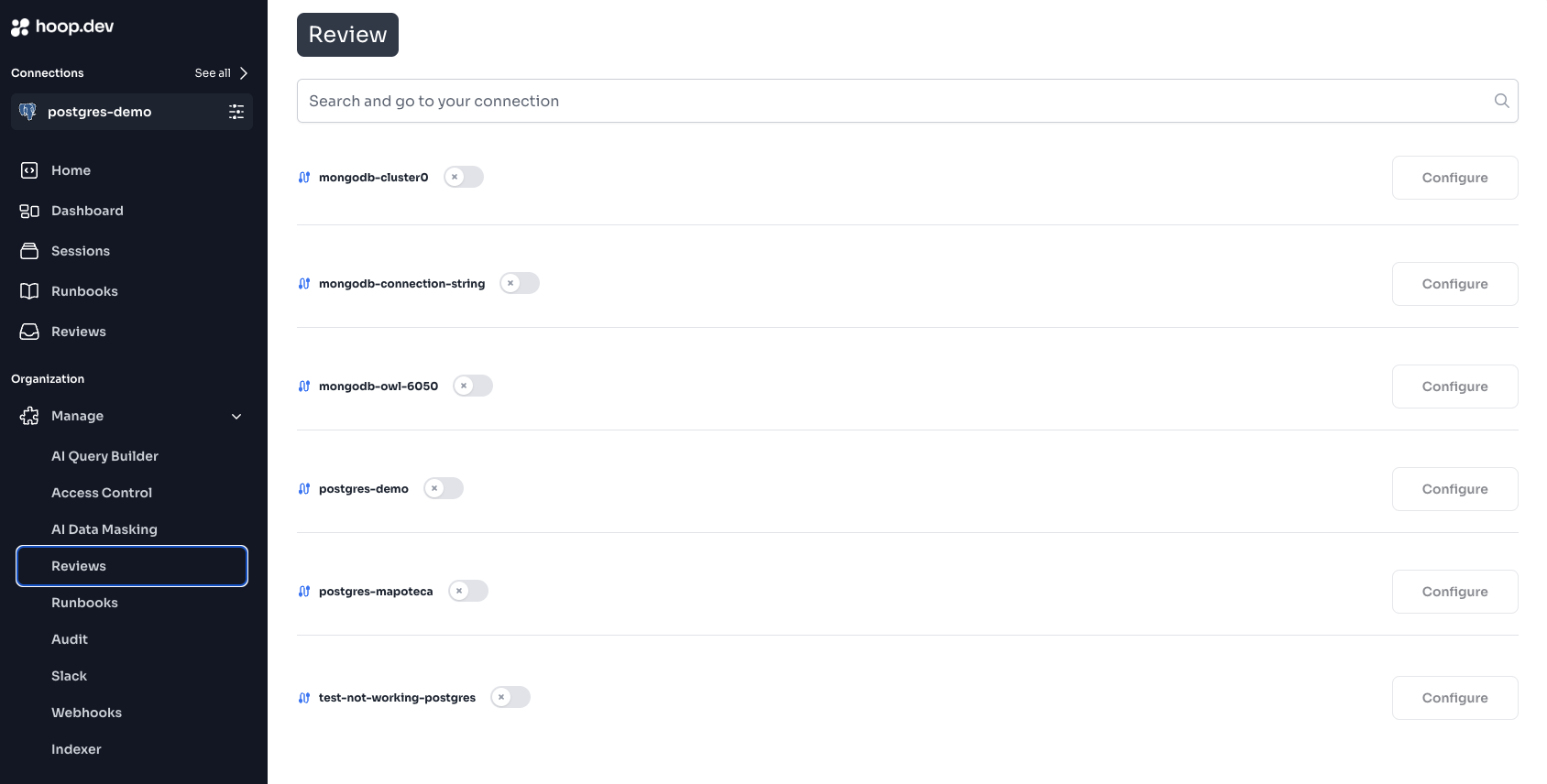 Select the groups that can approve access requests
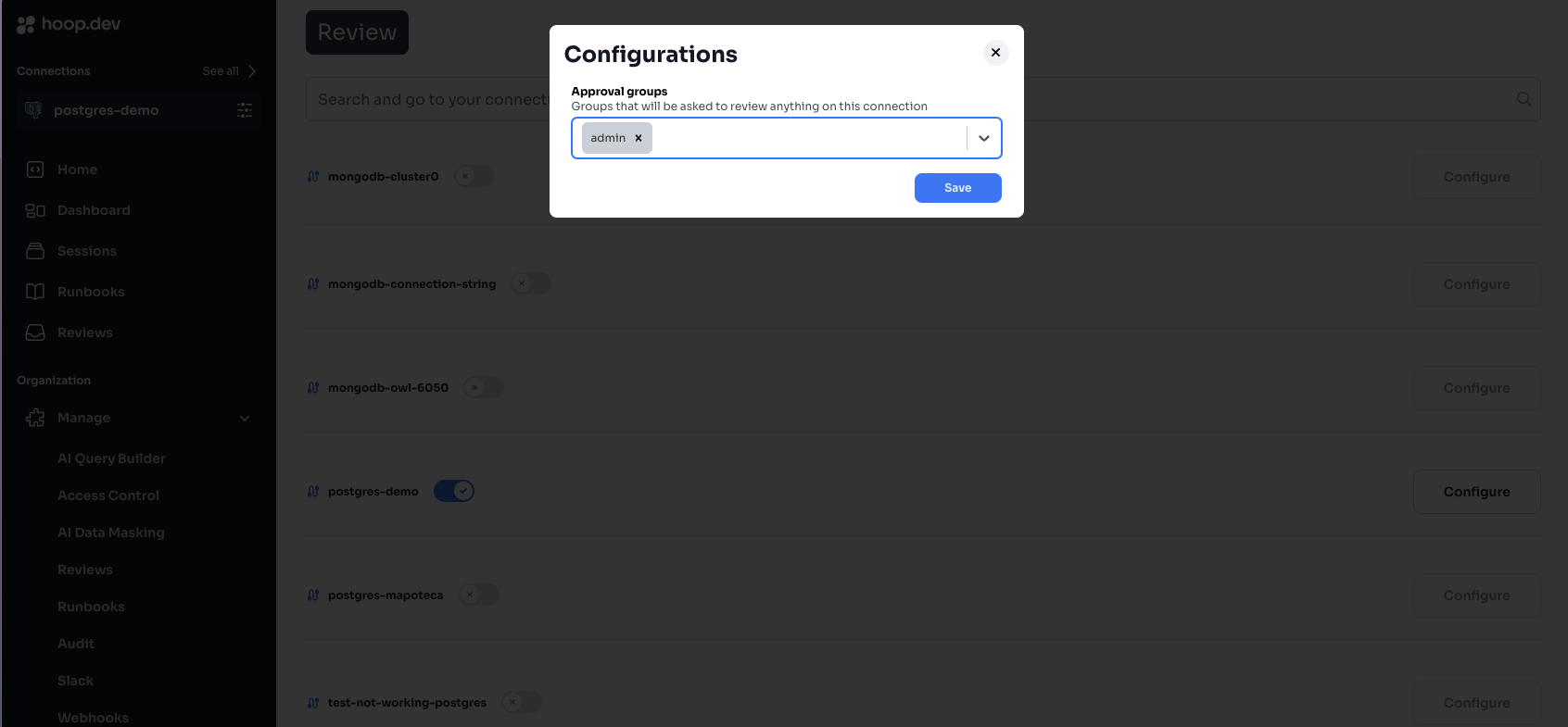 Selecting multiple groups requires **all groups** to approve before access is granted.
Click **Save** to enable JIT access requests for this connection
### Step 2: Request JIT Access (as a user)
Use the `--duration` flag to request time-limited access:
```bash theme={null}
hoop connect prod-postgres --duration 2h
```
You'll see:
```
⣷ waiting for access request to be approved at https://use.hoop.dev/access-requests/abc123...
```
**Duration formats:**
* `30m` - 30 minutes
* `2h` - 2 hours
* `8h` - 8 hours (full workday)
* `24h` - 24 hours
### Step 3: Approve the Request (as an approver)
Approvers receive a notification via Slack, Teams, or email (depending on your configuration):
**Option A: Approve via Slack**
Click the **Approve** button directly in the Slack notification.
**Option B: Approve via Web App**
1. Go to **Access Requests** in the sidebar
2. Find the pending request
3. Review the details (who, what connection, how long)
4. Click **Approve** or **Reject**
### Step 4: Access Granted
Once approved, the user's terminal shows:
```
Connection ready. Session ID: sess_abc123
Access expires in 2 hours.
```
The user can now run commands freely until the time expires:
```bash theme={null}
# All commands work within the approved time window
psql -c "SELECT * FROM orders WHERE status = 'pending'"
psql -c "UPDATE orders SET status = 'processed' WHERE id = 123"
```
### Step 5: Automatic Expiration
When the duration ends:
* The session status changes to **EXECUTED**
* New connection attempts require a new approval
* All activity is logged in the session audit trail
***
## Configuration Options
### Access Duration Limits
Control how long users can request access for. Configure this in **Manage > Connections > \[connection] > Settings**:
| Setting | Description |
| -------------------- | -------------------------------------------------- |
| **Maximum Duration** | Longest access period users can request (e.g., 8h) |
| **Default Duration** | Duration used if user doesn't specify `--duration` |
### Multiple Approval Groups
Require approval from multiple teams for sensitive resources:
| Configuration | Behavior |
| -------------------------------------------- | ------------------------------------------- |
| **Single group** (`dba-team`) | Any member of `dba-team` can approve |
| **Multiple groups** (`dba-team`, `security`) | One member from **each** group must approve |
**Use case:** Production database access requires both DBA approval and Security sign-off.
### Approval Group Requirements
| Setting | Description |
| --------------------------- | ------------------------------------------------- |
| **Minimum Approvals** | Number of approvals needed per group (default: 1) |
| **Auto-approve for admins** | Admin users bypass approval requirements |
Admin users can approve their own requests. To test the full workflow, use a non-admin account.
***
## Common Use Cases
### 1. Production Database Debugging
A developer needs to investigate a production issue:
```bash theme={null}
# Request 1 hour of access
hoop connect prod-db --duration 1h
```
DBA approves via Slack. Developer runs diagnostic queries. Access expires automatically.
### 2. On-Call Access
On-call engineers get temporary elevated access during their shift:
```bash theme={null}
# Request access for 8-hour shift
hoop connect all-prod-systems --duration 8h
```
### 3. Break-Glass Emergency Access
For urgent incidents, request immediate access with documentation:
```bash theme={null}
# Emergency access with explicit duration
hoop connect critical-system --duration 30m
```
**Best practice:** Set up a dedicated `emergency-approvers` group with 24/7 availability.
### 4. Contractor Time-Limited Access
Grant temporary access for external contractors:
```bash theme={null}
# Contractor requests access for their engagement period
hoop connect client-db --duration 4h
```
***
## Integrations
JIT Access Requests work with your existing communication tools:
Receive access requests and approve directly in Slack
Get notifications and manage access requests in Teams
### Setting Up Slack Notifications
1. [Install the Slack integration](/integrations/slack)
2. Configure channels for access request notifications
3. Users run `/hoop subscribe` in Slack to receive notifications
***
## Troubleshooting
### "My request is stuck in PENDING"
**Possible causes:**
1. **No active approvers** - Check that the approval groups have members online
2. **Multiple groups required** - All configured groups must approve
3. **Slack notifications not working** - Verify the [Slack integration](/integrations/slack) is configured
**How to check:**
* View the request in **Access Requests** > find your request > check which groups have approved
### "Admin users bypass the approval"
This is expected behavior. Admin users auto-approve their own requests.
**To test the full workflow:**
* Create a non-admin test user
* Add them to a group without admin privileges
* Request access as that user
### "Access still works after time limit"
**Possible causes:**
1. **Active session** - If a session is actively in use, it may not terminate immediately
2. **Request not expired** - Check the request status in **Access Requests** > click on the session
**How to force expire:**
* An admin can **Revoke** the access from the Access Requests page
* This immediately changes the status to REVOKED and terminates access
### "I can't see the approval notification in Slack"
**Check:**
1. The Slack app is installed correctly ([setup guide](/integrations/slack))
2. The connection has the `slack` plugin enabled
3. The approver has subscribed with `/hoop subscribe`
4. The notification channel is configured in Slack plugin settings
***
## Best Practices
Match access duration to task requirements. 2 hours for debugging, 8 hours for on-call shifts.
Require both technical and security approval for production databases.
Real-time notifications ensure fast approval turnaround.
Review access patterns in Sessions to identify unusual activity.
***
## Next Steps
Approve individual commands instead of time-based access
Set up Slack for access request notifications
Audit what happened during approved sessions
Configure who can access which connections
Selecting multiple groups requires **all groups** to approve before access is granted.
Click **Save** to enable JIT access requests for this connection
### Step 2: Request JIT Access (as a user)
Use the `--duration` flag to request time-limited access:
```bash theme={null}
hoop connect prod-postgres --duration 2h
```
You'll see:
```
⣷ waiting for access request to be approved at https://use.hoop.dev/access-requests/abc123...
```
**Duration formats:**
* `30m` - 30 minutes
* `2h` - 2 hours
* `8h` - 8 hours (full workday)
* `24h` - 24 hours
### Step 3: Approve the Request (as an approver)
Approvers receive a notification via Slack, Teams, or email (depending on your configuration):
**Option A: Approve via Slack**
Click the **Approve** button directly in the Slack notification.
**Option B: Approve via Web App**
1. Go to **Access Requests** in the sidebar
2. Find the pending request
3. Review the details (who, what connection, how long)
4. Click **Approve** or **Reject**
### Step 4: Access Granted
Once approved, the user's terminal shows:
```
Connection ready. Session ID: sess_abc123
Access expires in 2 hours.
```
The user can now run commands freely until the time expires:
```bash theme={null}
# All commands work within the approved time window
psql -c "SELECT * FROM orders WHERE status = 'pending'"
psql -c "UPDATE orders SET status = 'processed' WHERE id = 123"
```
### Step 5: Automatic Expiration
When the duration ends:
* The session status changes to **EXECUTED**
* New connection attempts require a new approval
* All activity is logged in the session audit trail
***
## Configuration Options
### Access Duration Limits
Control how long users can request access for. Configure this in **Manage > Connections > \[connection] > Settings**:
| Setting | Description |
| -------------------- | -------------------------------------------------- |
| **Maximum Duration** | Longest access period users can request (e.g., 8h) |
| **Default Duration** | Duration used if user doesn't specify `--duration` |
### Multiple Approval Groups
Require approval from multiple teams for sensitive resources:
| Configuration | Behavior |
| -------------------------------------------- | ------------------------------------------- |
| **Single group** (`dba-team`) | Any member of `dba-team` can approve |
| **Multiple groups** (`dba-team`, `security`) | One member from **each** group must approve |
**Use case:** Production database access requires both DBA approval and Security sign-off.
### Approval Group Requirements
| Setting | Description |
| --------------------------- | ------------------------------------------------- |
| **Minimum Approvals** | Number of approvals needed per group (default: 1) |
| **Auto-approve for admins** | Admin users bypass approval requirements |
Admin users can approve their own requests. To test the full workflow, use a non-admin account.
***
## Common Use Cases
### 1. Production Database Debugging
A developer needs to investigate a production issue:
```bash theme={null}
# Request 1 hour of access
hoop connect prod-db --duration 1h
```
DBA approves via Slack. Developer runs diagnostic queries. Access expires automatically.
### 2. On-Call Access
On-call engineers get temporary elevated access during their shift:
```bash theme={null}
# Request access for 8-hour shift
hoop connect all-prod-systems --duration 8h
```
### 3. Break-Glass Emergency Access
For urgent incidents, request immediate access with documentation:
```bash theme={null}
# Emergency access with explicit duration
hoop connect critical-system --duration 30m
```
**Best practice:** Set up a dedicated `emergency-approvers` group with 24/7 availability.
### 4. Contractor Time-Limited Access
Grant temporary access for external contractors:
```bash theme={null}
# Contractor requests access for their engagement period
hoop connect client-db --duration 4h
```
***
## Integrations
JIT Access Requests work with your existing communication tools:
Receive access requests and approve directly in Slack
Get notifications and manage access requests in Teams
### Setting Up Slack Notifications
1. [Install the Slack integration](/integrations/slack)
2. Configure channels for access request notifications
3. Users run `/hoop subscribe` in Slack to receive notifications
***
## Troubleshooting
### "My request is stuck in PENDING"
**Possible causes:**
1. **No active approvers** - Check that the approval groups have members online
2. **Multiple groups required** - All configured groups must approve
3. **Slack notifications not working** - Verify the [Slack integration](/integrations/slack) is configured
**How to check:**
* View the request in **Access Requests** > find your request > check which groups have approved
### "Admin users bypass the approval"
This is expected behavior. Admin users auto-approve their own requests.
**To test the full workflow:**
* Create a non-admin test user
* Add them to a group without admin privileges
* Request access as that user
### "Access still works after time limit"
**Possible causes:**
1. **Active session** - If a session is actively in use, it may not terminate immediately
2. **Request not expired** - Check the request status in **Access Requests** > click on the session
**How to force expire:**
* An admin can **Revoke** the access from the Access Requests page
* This immediately changes the status to REVOKED and terminates access
### "I can't see the approval notification in Slack"
**Check:**
1. The Slack app is installed correctly ([setup guide](/integrations/slack))
2. The connection has the `slack` plugin enabled
3. The approver has subscribed with `/hoop subscribe`
4. The notification channel is configured in Slack plugin settings
***
## Best Practices
Match access duration to task requirements. 2 hours for debugging, 8 hours for on-call shifts.
Require both technical and security approval for production databases.
Real-time notifications ensure fast approval turnaround.
Review access patterns in Sessions to identify unusual activity.
***
## Next Steps
Approve individual commands instead of time-based access
Set up Slack for access request notifications
Audit what happened during approved sessions
Configure who can access which connections