> ## Documentation Index
> Fetch the complete documentation index at: https://hoopdev-docs-improve-idp-sso-pages.mintlify.site/llms.txt
> Use this file to discover all available pages before exploring further.
# Action Access Requests
> Require approval for individual commands before they execute
 ## What You'll Accomplish
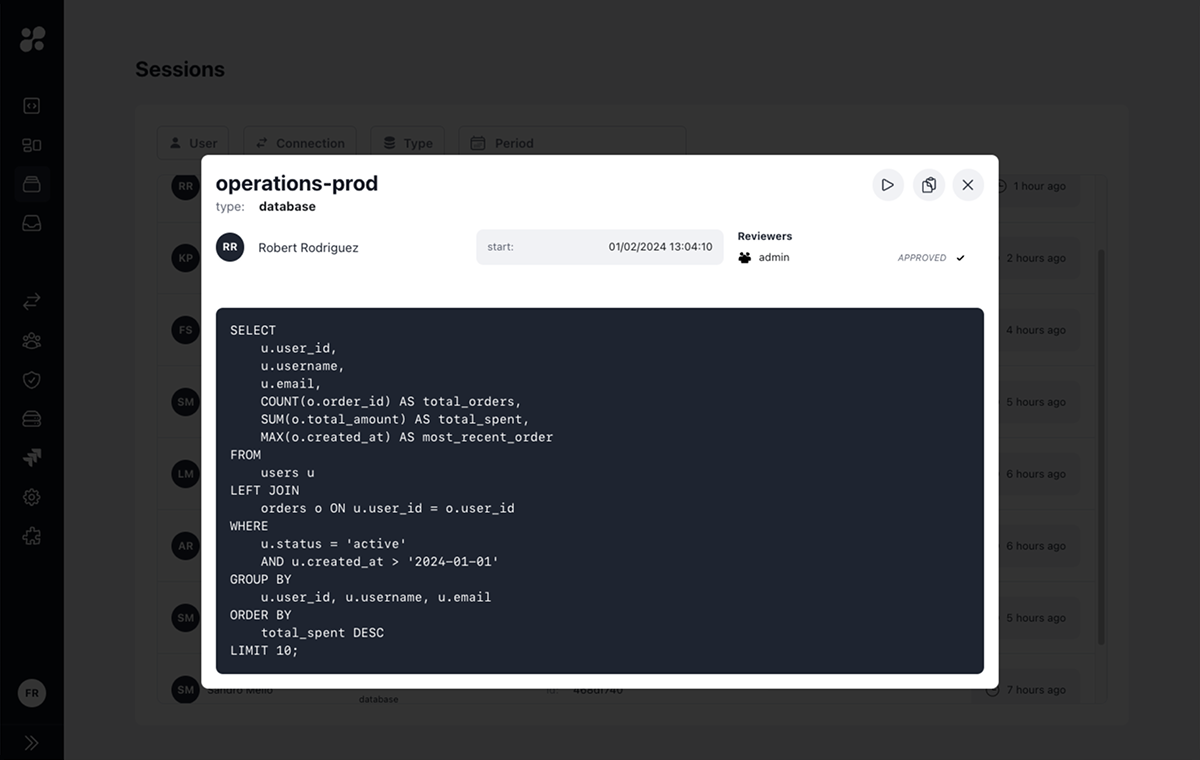
Action Access Requests require approval for each command before it executes. Unlike JIT Access Requests (which grant time-based access), Action requests give you command-level control:
* Review the exact query before it runs
* Approve or modify commands in real-time
* Block dangerous operations even from authorized users
* Create an audit trail of every approved action
**The key difference from JIT Access Requests:** Action requires approval for each command. JIT grants a time window where all commands are allowed.
***
## How It Works
User runs a command through Hoop (CLI, Web App, or API)
Hoop holds the command and creates an access request with status PENDING
Designated approvers receive a notification (Slack, Teams, or Web App)
Approver sees the exact command and can:
* **Approve** - Execute the command as-is
* **Reject** - Block the command
If approved, the command runs and results are returned to the user
### What the User Sees
```bash theme={null}
$ hoop exec prod-db -i "UPDATE users SET status = 'inactive' WHERE id = 123"
⣷ Waiting for approval...
```
The command waits until an approver takes action.
### What the Approver Sees
In Slack (or Teams):
```
🔔 Access Request from alice@company.com
Connection: prod-db
Command: UPDATE users SET status = 'inactive' WHERE id = 123
[Approve] [Reject]
```
***
## Quick Start
## Prerequisites
To get the most out of this guide, you will need to:
* Either [create an account in our managed instance](https://use.hoop.dev) or [deploy your own hoop.dev instance](/setup/deployment/overview)
* You must be your account administrator to perform the following actions
- A connection configured with an agent
- At least one user group for approvers
- (Optional) [Slack](/integrations/slack) or [Teams](/integrations/teams) integration
### Step 1: Enable Action Access Requests
Go to **Connections** and select your connection
Click the **Additional Configuration** tab
Toggle on **Access Requests**
Choose which groups can approve commands
Click **Save** to apply changes
### Step 2: Test the Workflow
As a non-admin user, run a command:
```bash theme={null}
hoop exec prod-db -i "SELECT COUNT(*) FROM users"
```
You should see:
```
⣷ Waiting for approval at https://use.hoop.dev/access-requests/abc123...
```
### Step 3: Approve the Command
As an approver:
**Option A: Via Slack**
1. Find the notification in your Slack channel
2. Review the command
3. Click **Approve**
**Option B: Via Web App**
1. Go to **Access Requests** in the sidebar
2. Find the pending request
3. Review the command details
4. Click **Approve** or **Reject**
### Step 4: Command Executes
Once approved, the user's terminal shows the results:
```
count
-------
12345
(1 row)
```
***
## Configuration Options
### Approval Groups
Configure which groups can approve commands:
| Configuration | Behavior |
| ---------------------------------------- | ------------------------------------------- |
| Single group (`dba-team`) | Any member of `dba-team` can approve |
| Multiple groups (`dba-team`, `security`) | One member from **each** group must approve |
### Groups Requiring Approval
Configure which groups need their commands approved:
| Setting | Behavior |
| --------------- | --------------------------------------------- |
| All users | Every command requires approval |
| Specific groups | Only commands from those groups need approval |
| Exempt groups | Some groups (like `admin`) bypass approval |
### Request Timeout
Set how long to wait for approval before the request expires:
| Setting | Use Case |
| ---------- | -------------------- |
| 5 minutes | Quick ad-hoc queries |
| 30 minutes | Standard operations |
| 1 hour | Complex procedures |
***
## Use Cases
### 1. Production Database Changes
All write operations on production require approval:
```bash theme={null}
# This will wait for approval
hoop exec prod-db -i "UPDATE orders SET status = 'shipped' WHERE id = 123"
```
The DBA reviews the exact UPDATE statement before it runs.
### 2. Dangerous Commands
Block risky operations unless approved:
```bash theme={null}
# This will definitely need approval
hoop exec prod-db -i "DELETE FROM logs WHERE created_at < '2024-01-01'"
```
Security team can verify the WHERE clause is correct.
### 3. Junior Developer Oversight
Junior team members get their commands reviewed:
* Configure juniors' group to require approval
* Senior team members' group can approve
* Learning opportunity for juniors to see corrections
### 4. Compliance Requirements
Some regulations require dual approval for data access:
* Configure multiple approval groups
* Both groups must approve before execution
* Full audit trail for compliance reporting
***
## Integration Options
### Slack
Receive and approve commands directly in Slack:
1. [Set up Slack integration](/integrations/slack)
2. Configure notification channel
3. Approvers click buttons to approve/reject
### Microsoft Teams
Same workflow in Teams:
1. [Set up Teams integration](/integrations/teams)
2. Configure webhook URL
3. Notifications appear in your channel
### Webhooks
For custom integrations:
1. Configure a webhook endpoint
2. Receive POST requests for new access requests
3. Call the API to approve/reject
***
## Comparison: Action vs JIT
| Aspect | Action | JIT |
| ------------------- | ----------------------------------- | ------------------------------- |
| **Approval scope** | Each command | Time window |
| **User experience** | Wait for each command | Request once, run freely |
| **Security level** | Highest | High |
| **Use case** | Write operations, sensitive queries | Read access, debugging sessions |
| **Approver load** | Higher (more requests) | Lower (one per session) |
### When to Use Action
* Production write operations (UPDATE, DELETE, INSERT)
* Sensitive data access
* Compliance-required dual approval
* Training/oversight scenarios
### When to Use JIT
* Debugging sessions (many queries)
* Read-only access
* On-call access
* Time-limited elevated access
***
## Troubleshooting
### Command Times Out
If the command expires before approval:
**Check:**
1. Approvers received the notification
2. Slack/Teams integration is working
3. Request timeout is long enough
**Solutions:**
* Increase timeout in connection settings
* Verify notification channel configuration
* Add more approvers for faster response
### Approver Can't See Request
**Check:**
1. Approver is in an approval group
2. Approver has subscribed to notifications (`/hoop subscribe` in Slack)
3. Notification channel is configured
### Admin Users Bypass Approval
This is expected—admin users auto-approve their own requests.
**To test the full workflow:**
* Use a non-admin test account
* Or temporarily remove yourself from admin group
### Request Shows "Rejected" But Shouldn't
**Check the rejection reason:**
1. Go to **Access Requests** in Web App
2. Find the rejected request
3. Click to see who rejected and why
***
## Best Practices
Document which commands need approval and why
Have approvers available during work hours
Configure multiple approvers for coverage
Set timeouts based on operational needs
### For Approvers
1. **Review carefully** - Check the exact command being run
2. **Verify context** - Who is running it and why
3. **Respond quickly** - Don't leave requesters waiting
4. **Document rejections** - Explain why if you reject
***
## Next Steps
Time-based access for debugging sessions
Detailed configuration options
Set up Slack notifications
Block dangerous commands automatically
## What You'll Accomplish
Action Access Requests require approval for each command before it executes. Unlike JIT Access Requests (which grant time-based access), Action requests give you command-level control:
* Review the exact query before it runs
* Approve or modify commands in real-time
* Block dangerous operations even from authorized users
* Create an audit trail of every approved action
**The key difference from JIT Access Requests:** Action requires approval for each command. JIT grants a time window where all commands are allowed.
***
## How It Works
User runs a command through Hoop (CLI, Web App, or API)
Hoop holds the command and creates an access request with status PENDING
Designated approvers receive a notification (Slack, Teams, or Web App)
Approver sees the exact command and can:
* **Approve** - Execute the command as-is
* **Reject** - Block the command
If approved, the command runs and results are returned to the user
### What the User Sees
```bash theme={null}
$ hoop exec prod-db -i "UPDATE users SET status = 'inactive' WHERE id = 123"
⣷ Waiting for approval...
```
The command waits until an approver takes action.
### What the Approver Sees
In Slack (or Teams):
```
🔔 Access Request from alice@company.com
Connection: prod-db
Command: UPDATE users SET status = 'inactive' WHERE id = 123
[Approve] [Reject]
```
***
## Quick Start
## Prerequisites
To get the most out of this guide, you will need to:
* Either [create an account in our managed instance](https://use.hoop.dev) or [deploy your own hoop.dev instance](/setup/deployment/overview)
* You must be your account administrator to perform the following actions
- A connection configured with an agent
- At least one user group for approvers
- (Optional) [Slack](/integrations/slack) or [Teams](/integrations/teams) integration
### Step 1: Enable Action Access Requests
Go to **Connections** and select your connection
Click the **Additional Configuration** tab
Toggle on **Access Requests**
Choose which groups can approve commands
Click **Save** to apply changes
### Step 2: Test the Workflow
As a non-admin user, run a command:
```bash theme={null}
hoop exec prod-db -i "SELECT COUNT(*) FROM users"
```
You should see:
```
⣷ Waiting for approval at https://use.hoop.dev/access-requests/abc123...
```
### Step 3: Approve the Command
As an approver:
**Option A: Via Slack**
1. Find the notification in your Slack channel
2. Review the command
3. Click **Approve**
**Option B: Via Web App**
1. Go to **Access Requests** in the sidebar
2. Find the pending request
3. Review the command details
4. Click **Approve** or **Reject**
### Step 4: Command Executes
Once approved, the user's terminal shows the results:
```
count
-------
12345
(1 row)
```
***
## Configuration Options
### Approval Groups
Configure which groups can approve commands:
| Configuration | Behavior |
| ---------------------------------------- | ------------------------------------------- |
| Single group (`dba-team`) | Any member of `dba-team` can approve |
| Multiple groups (`dba-team`, `security`) | One member from **each** group must approve |
### Groups Requiring Approval
Configure which groups need their commands approved:
| Setting | Behavior |
| --------------- | --------------------------------------------- |
| All users | Every command requires approval |
| Specific groups | Only commands from those groups need approval |
| Exempt groups | Some groups (like `admin`) bypass approval |
### Request Timeout
Set how long to wait for approval before the request expires:
| Setting | Use Case |
| ---------- | -------------------- |
| 5 minutes | Quick ad-hoc queries |
| 30 minutes | Standard operations |
| 1 hour | Complex procedures |
***
## Use Cases
### 1. Production Database Changes
All write operations on production require approval:
```bash theme={null}
# This will wait for approval
hoop exec prod-db -i "UPDATE orders SET status = 'shipped' WHERE id = 123"
```
The DBA reviews the exact UPDATE statement before it runs.
### 2. Dangerous Commands
Block risky operations unless approved:
```bash theme={null}
# This will definitely need approval
hoop exec prod-db -i "DELETE FROM logs WHERE created_at < '2024-01-01'"
```
Security team can verify the WHERE clause is correct.
### 3. Junior Developer Oversight
Junior team members get their commands reviewed:
* Configure juniors' group to require approval
* Senior team members' group can approve
* Learning opportunity for juniors to see corrections
### 4. Compliance Requirements
Some regulations require dual approval for data access:
* Configure multiple approval groups
* Both groups must approve before execution
* Full audit trail for compliance reporting
***
## Integration Options
### Slack
Receive and approve commands directly in Slack:
1. [Set up Slack integration](/integrations/slack)
2. Configure notification channel
3. Approvers click buttons to approve/reject
### Microsoft Teams
Same workflow in Teams:
1. [Set up Teams integration](/integrations/teams)
2. Configure webhook URL
3. Notifications appear in your channel
### Webhooks
For custom integrations:
1. Configure a webhook endpoint
2. Receive POST requests for new access requests
3. Call the API to approve/reject
***
## Comparison: Action vs JIT
| Aspect | Action | JIT |
| ------------------- | ----------------------------------- | ------------------------------- |
| **Approval scope** | Each command | Time window |
| **User experience** | Wait for each command | Request once, run freely |
| **Security level** | Highest | High |
| **Use case** | Write operations, sensitive queries | Read access, debugging sessions |
| **Approver load** | Higher (more requests) | Lower (one per session) |
### When to Use Action
* Production write operations (UPDATE, DELETE, INSERT)
* Sensitive data access
* Compliance-required dual approval
* Training/oversight scenarios
### When to Use JIT
* Debugging sessions (many queries)
* Read-only access
* On-call access
* Time-limited elevated access
***
## Troubleshooting
### Command Times Out
If the command expires before approval:
**Check:**
1. Approvers received the notification
2. Slack/Teams integration is working
3. Request timeout is long enough
**Solutions:**
* Increase timeout in connection settings
* Verify notification channel configuration
* Add more approvers for faster response
### Approver Can't See Request
**Check:**
1. Approver is in an approval group
2. Approver has subscribed to notifications (`/hoop subscribe` in Slack)
3. Notification channel is configured
### Admin Users Bypass Approval
This is expected—admin users auto-approve their own requests.
**To test the full workflow:**
* Use a non-admin test account
* Or temporarily remove yourself from admin group
### Request Shows "Rejected" But Shouldn't
**Check the rejection reason:**
1. Go to **Access Requests** in Web App
2. Find the rejected request
3. Click to see who rejected and why
***
## Best Practices
Document which commands need approval and why
Have approvers available during work hours
Configure multiple approvers for coverage
Set timeouts based on operational needs
### For Approvers
1. **Review carefully** - Check the exact command being run
2. **Verify context** - Who is running it and why
3. **Respond quickly** - Don't leave requesters waiting
4. **Document rejections** - Explain why if you reject
***
## Next Steps
Time-based access for debugging sessions
Detailed configuration options
Set up Slack notifications
Block dangerous commands automatically